
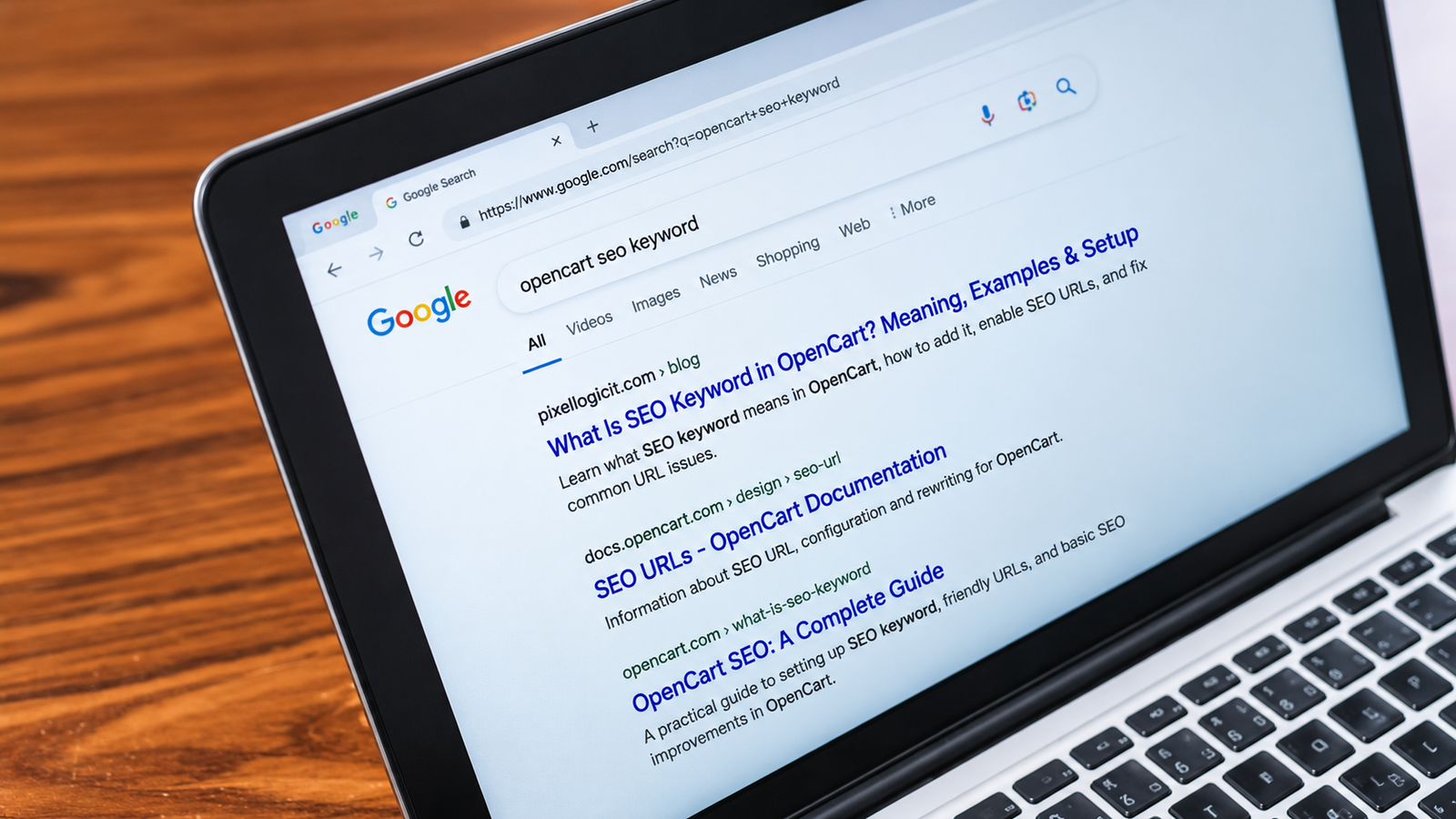
If you've ever added a product to OpenCart, you've probably noticed a field labeled "SEO Keyword." The name can be confusing. Does it mean you should enter the keywords people search for on Google? Or is it something different? An SEO keyword in OpenCart is a short word or phrase used to create a clean, readable URL for a product, category, or other page. Instead of showing a long web address filled with numbers, OpenCart can display a URL that describes the page. For example, a product URL could change from:
example.com/index.php?route=product/product&product_id=42To:
example.com/blue-running-shoesThe second address is easier to understand. Visitors can tell what the page is about before clicking the link. But entering a keyword alone isn't enough. You also need to enable SEO URLs and make sure your store is configured correctly. This guide explains what SEO keywords mean in OpenCart, how to add them, and what to do when your SEO-friendly URLs aren't working.
What Is an SEO Keyword in OpenCart?
An SEO keyword in OpenCart is the descriptive part of a page's URL, often called a URL slug. It helps replace technical web addresses with readable ones. OpenCart normally uses internal IDs and routes to identify products and categories. These work perfectly well for displaying pages, but they aren't always easy for customers to recognize. SEO keywords give those pages simpler addresses. Suppose you own an online clothing store and want to sell a black leather jacket. Your product information might look like this:
| Field | Example |
|---|---|
| Product name | Men's Black Leather Jacket |
| Product ID | 125 |
| SEO Keyword | mens-black-leather-jacket |
| Example SEO URL | example.com/mens-black-leather-jacket |
When SEO URLs are enabled, OpenCart can use the keyword to create a readable product address. The exact URL may look different depending on your OpenCart version, language settings, and installed extensions.
How Does the SEO Keyword Field Work?
OpenCart connects an SEO keyword to the page's internal information. When a visitor opens a friendly URL, the store uses its URL mapping and routing system to find the correct product or category. Think of the SEO keyword as a readable name attached to the page's internal address. For example, the keyword coffee-makers could identify your coffee maker category. You don't need to remember its internal category ID. This also makes links easier to recognize when you're reviewing products or updating website content.
SEO Keyword vs Search Keyword: What's the Difference?
An SEO keyword in OpenCart is not the same as a keyword you want to rank for on Google. This is one of the most common points of confusion for beginners. A search keyword is a phrase someone types into Google. An OpenCart SEO keyword is the text used to create a page URL.
Let's use an example. Imagine your online store sells wireless gaming mice. Someone might search Google for "best wireless gaming mouse for PC." That is a search keyword. However, your product's OpenCart SEO keyword could simply be wireless-gaming-mouse. Here's a quick comparison:
| Term | Purpose | Example |
|---|---|---|
| Search keyword | Describes what customers search for | best wireless gaming mouse |
| OpenCart SEO keyword | Creates a readable URL | wireless-gaming-mouse |
| Meta title | Describes the page in search results | Wireless Gaming Mouse for PC |
| Meta keywords | Older HTML field for keyword terms | gaming mouse, wireless mouse |
Your SEO keyword should reflect what the page contains. It doesn't need to include every search phrase customers might use.
Is an SEO Keyword the Same as Meta Keywords?
No. These are separate fields with different purposes. The OpenCart SEO Keyword field controls the readable text in a page's URL. Meta Keywords, on the other hand, is an older HTML field where website owners could enter a list of search terms. Google doesn't use the meta keywords tag for ranking or indexing. That means filling your Meta Keywords field with dozens of phrases won't improve your Google rankings.
Why Are SEO Keywords Important in OpenCart?
SEO keywords help make your OpenCart URLs clearer and easier to manage. They also give search engines a more descriptive web address to discover. However, SEO keywords are only one part of a successful eCommerce SEO strategy.
1. SEO Keywords Make URLs Easier to Understand
Consider these two addresses:
example.com/index.php?route=product/product&product_id=125example.com/black-leather-jacketBoth could lead to the same product. The second one tells visitors what they can expect from the page. This is particularly useful when customers share product links through email or social media.
2. Descriptive URLs Give Search Engines More Context
Google recommends using simple, descriptive words in URLs whenever possible. For example, a URL containing running-shoes gives more context than one containing only a product number. But descriptive URLs aren't a shortcut to the top of Google. Your product descriptions, website structure, and overall content quality still matter.
3. Clean URLs Make Store Management Easier
Imagine managing an OpenCart store with 500 products. Identifying pages by their product IDs can become frustrating, especially when you're reviewing links or checking website performance. Descriptive URLs make it easier to recognize which pages you're working with. They also help you maintain a consistent naming system as your store grows.
4. SEO Keywords Support a Better Store Structure
Products and categories are connected. Your URLs should reflect a structure that makes sense for your website. For example, an electronics store might have categories for laptops, monitors, and accessories. Using relevant SEO keywords helps make those page addresses recognizable.
Still, readable URLs are only one part of optimizing an online store. A complete eCommerce SEO strategy also considers product content, category organization, and how search engines discover important pages.
How to Enable SEO-Friendly URLs in OpenCart
You need to enable SEO URLs before your store can use its configured SEO keywords in friendly web addresses. In standard OpenCart installations, this setting is available through the admin dashboard.
Step 1: Enable SEO URLs in Store Settings
Follow these steps:
- Log in to your OpenCart admin dashboard.
- Go to System → Settings.
- Find your store and click Edit.
- Open the Server tab.
- Find the Use SEO URL option.
- Change the setting to Yes.
- Save your changes.
Once you've enabled the setting, OpenCart is ready to use SEO URLs, provided the necessary mappings and server rewrite configuration are in place.
Step 2: Check the .htaccess File
If your website uses an Apache server, URL rewriting normally depends on the .htaccess file. OpenCart installations commonly include a file called htaccess.txt. For a standard Apache setup, you may need to rename it to .htaccess in the OpenCart installation directory. You should also confirm that Apache's mod_rewrite module is enabled. If OpenCart is installed in a subdirectory rather than the domain root, the rewrite configuration may need additional changes. Not every website uses Apache. Stores running on Nginx require the correct Nginx rewrite rules instead.
Quick tip: Don't replace a working server configuration without making a backup. If you're unfamiliar with server settings, ask your hosting provider to confirm the correct rewrite rules. You can also consult the official OpenCart SEO URL documentation.
How to Add an SEO Keyword in OpenCart
You can add an SEO keyword by editing a product or category in the admin panel. Let's look at both options.
How to Add an SEO Keyword to a Product
Suppose you've added a product called "Women's White Sneakers." You want its URL to contain womens-white-sneakers.
Here's how to do it:
- Log in to the OpenCart admin dashboard.
- Open Catalog → Products.
- Find the product you want to update.
- Click Edit.
- Open the SEO tab.
- Select the appropriate store and language, if shown.
- Enter womens-white-sneakers in the keyword field.
- Save your changes.
Now open the product on your website.
If SEO URLs are enabled and working correctly, its URL should use your new keyword within the store's configured URL structure. Remember that some older OpenCart versions place the SEO Keyword field under the Data tab.
How to Add an SEO Keyword to a Category
The process for categories is similar. Imagine you have a category called "Home Office Furniture."
A suitable SEO keyword would be:
home-office-furniture
To add it, open Catalog → Categories and edit the appropriate category.
Then open the SEO tab, enter the keyword for your store and language, and save. Visit the category page to make sure the URL is working. This same basic approach applies to many information pages, although the exact editing options can depend on your OpenCart version.
How to Manage SEO URLs in OpenCart 3 and 4
OpenCart 3.x and 4.x both support SEO-friendly URLs, but some interface details and generated URL structures are different. For example, OpenCart 4 can include language and page-type segments in URLs.
| Feature | OpenCart 3.x | OpenCart 4.x |
|---|---|---|
| Product SEO keywords | Product SEO tab | Product SEO tab |
| Category SEO keywords | Category SEO tab | Category SEO tab |
| SEO URL management | Design → SEO URL | Design → SEO URL |
| Multi-language URLs | Supported | Supported |
| URL structure | Depends on configuration | May include additional route sections |
You can also visit Design → SEO URL to inspect existing URL mappings.
In OpenCart 4, SEO URL records may contain details such as the store, language, key, value, and keyword.
These help OpenCart connect the friendly URL with its internal route information.
For ordinary product changes, editing the product's SEO tab is generally easier than manually creating URL mapping records.
Best SEO Keyword Examples for OpenCart
A good OpenCart SEO keyword should describe the product or category without including unnecessary words. Here are some examples you can follow.
| Product or category | Good SEO keyword | Poor SEO keyword |
|---|---|---|
| Running Shoes | running-shoes | shoes12345 |
| Wireless Headphones | wireless-headphones | buy-best-cheap-headphones-now |
| Office Chairs | office-chairs | office_chairs_best |
| Leather Wallet | leather-wallet | wallet-leather-buy-cheap-sale |
| Coffee Makers | coffee-makers | coffeemakers456 |
| Gaming Laptop | gaming-laptop | laptop-gaming-best-pc-buy |
The better examples are descriptive and easy to read. They also avoid keyword stuffing, which means adding extra search terms in an unnatural way.
Should You Include the Product Name in the SEO Keyword?
In most cases, yes. The product name is a good starting point because it tells visitors what they'll find on the page. For example, if you're selling a Samsung 27-inch monitor, you could create a keyword based on its actual brand and model. Be specific enough to distinguish the product from other items in your store. If you sell several similar monitors, including an accurate model number can help avoid duplicate keywords.
Should Category Keywords Be Different?
Category keywords normally describe a wider group of products.
For example:
- Category: mens-shoes
- Product: mens-black-running-shoes
The category keyword is broad because the page contains multiple products. The product keyword is more specific because it represents an individual item.
Best Practices for Choosing SEO Keywords in OpenCart
You don't need advanced SEO knowledge to choose a suitable keyword. A few simple rules can help keep your URLs consistent.
Keep Your SEO Keywords Short and Relevant
Use the words needed to describe the page. If your product is a black leather backpack, black-leather-backpack is a clear option. You don't need to add phrases such as "best price" or "buy online" unless they are genuinely necessary to distinguish the page. Long URLs aren't automatically bad, but unnecessary words make them harder to read.
Use Hyphens Between Words
Google recommends hyphens to separate words in URLs.
For example:
Good: mens-running-shoes
Avoid: mens_running_shoes
Avoid: mensrunningshoes
Hyphens make word boundaries easier to recognize. Use lowercase letters consistently to avoid unnecessary URL variations.
Make Every SEO Keyword Unique
OpenCart requires SEO URL keywords to be unique within the applicable store and language. If you try to assign the same keyword to two different pages in that context, you may encounter a conflict. Suppose you sell two black backpacks.
Instead of using black-backpack for both products, you could use:
- black-leather-backpack
- black-travel-backpack
This keeps the URLs distinct while accurately describing each item.
Avoid Unnecessary Symbols
Keep special characters out of your SEO keywords whenever possible. Characters such as question marks, ampersands, and spaces can create problems when used incorrectly in URLs. A simple format using lowercase letters, numbers, and hyphens is usually the easiest choice.
Don't Change Existing URLs Without a Reason
Once a product URL is published, customers may bookmark it or share it elsewhere. Changing its SEO keyword can break those old links. If you need to update an established URL, plan the redirect before making the change. We'll explain how that works below.
How to Fix OpenCart SEO URLs That Are Not Working
Sometimes you add an SEO keyword, save the product, and notice that the URL hasn't changed. Other times, the new address displays a 404 error. Several issues can cause this behavior.
1. SEO URLs Are Not Enabled
First, check your store settings. Go to System → Settings → Server and confirm that Use SEO URL is enabled. If it's disabled, OpenCart may continue generating its default technical URLs.
2. The .htaccess File Is Missing or Incorrect
If friendly URLs return 404 errors on an Apache server, check the rewrite configuration. Make sure the .htaccess file is in the correct directory and contains the appropriate rules for your installation. Also confirm that mod_rewrite is enabled. For Nginx hosting, inspect the Nginx configuration instead.
3. Two Pages Use the Same SEO Keyword
Duplicate keywords can prevent OpenCart from saving or resolving URLs correctly. Open Design → SEO URL and search for the affected keyword. If it's already associated with another page in the same store and language, choose a different keyword.
4. The Wrong Store or Language Is Selected
If you operate a multilingual store, check which language the keyword belongs to. You may need separate URL keywords for each enabled language. For example, an English product page could use an English phrase, while its Spanish version uses a Spanish phrase. Make sure each keyword matches the intended store and language.
5. Your OpenCart Cache Needs Clearing
Depending on your OpenCart version and extensions, cached data may prevent changes from appearing immediately. Clear the relevant cache and test the product again. Avoid assuming that every URL issue is caused by caching. If the address still doesn't work, review the URL mapping and server configuration.
Quick Troubleshooting Checklist
| Issue | Possible solution |
|---|---|
| SEO keyword not showing | Enable SEO URLs in store settings |
| URL displays 404 | Check server rewriting and URL mappings |
| Duplicate keyword error | Assign a unique keyword |
| Wrong language in URL | Review language-specific SEO settings |
| URL contains extra route sections | Check OpenCart version and configuration |
| Changes not appearing | Clear relevant cache and retest |
If these checks don't resolve the issue, the problem may involve your theme, a URL extension, or server configuration. Such problems fall under technical SEO, which deals with how search engines access and interpret website pages.
What Happens When You Change an Existing SEO Keyword?
Changing an SEO keyword changes the page's friendly URL. For a new product with no existing visitors, this may not create much difficulty. But changing an established product URL requires extra care. Suppose your original URL is:
example.com/old-running-shoesYou change it to:
example.com/mens-running-shoesThe new address may work correctly, but links pointing to the old URL could stop working. This is where redirects become useful.
Use a 301 Redirect for Important URL Changes
A 301 redirect tells browsers and search engines that a page has permanently moved. It sends visitors from the previous address to the new one.
For example:
/old-running-shoes → /mens-running-shoes
OpenCart doesn't necessarily create these redirects automatically when you change an SEO keyword. You may need to configure them through your server or a suitable extension. After creating the redirect, test both addresses to make sure visitors reach the correct page. Google recommends permanent server-side redirects for URL moves.
Check Your Canonical URLs
A canonical URL identifies the preferred version of a page when multiple URLs contain the same or very similar content. This can matter when products are accessible through different category paths or when your store generates multiple URL variations.
After changing an important URL, check that its canonical tag points to the intended address. You can explore our free canonical tag generator to understand the basic format of a canonical tag. Remember that adding a canonical tag doesn't replace a redirect when a page has permanently moved.
How to Check Whether Your OpenCart SEO Keywords Are Working
After setting up SEO keywords, you should test a few important product and category pages. Start by opening a product directly from your storefront. Check whether its URL is readable and whether the page loads without errors. Next, make sure the product name, heading, and description correctly explain what you're selling. A clean URL is useful, but it doesn't replace helpful product information. You should also check your title tags and meta descriptions. Our free Google meta tag preview tool can help you review how your proposed title, description, and URL may appear in a search result preview. For stores already receiving traffic, Google Search Console is useful for checking whether important URLs can be indexed and discovering errors that need attention.